Set Your Time Zone
The Inntopia system defaults to using US Eastern Standard Time.
- If your company is not located in the Eastern Standard Time zone, Inntopia recommends setting the time zone to the location of your company so that:
- Reservations are time stamped in your native time zone, and
- You receive accurate reporting data as many Inntopia reports are based on the time zone of the account running the report.
- All accounting transaction dates are determined according to the time zone of the reseller or supplier.
- For example, the transactions for a reseller located in British Columbia that occur between 9:00 PM and 11:59 PM PST on June 1 will be recorded with a date of June 1.
- The time stamp recorded with credit card charges is the time at the location of the reseller making the charge.
 Set Your Time Zone in Inntopia CRS
- Log into your Inntopia CRS account and click the Company tab.
- From the drop-down list, select your company name and click Go. The Company page appears.
- Scroll to Time Zone and open its drop-down list.
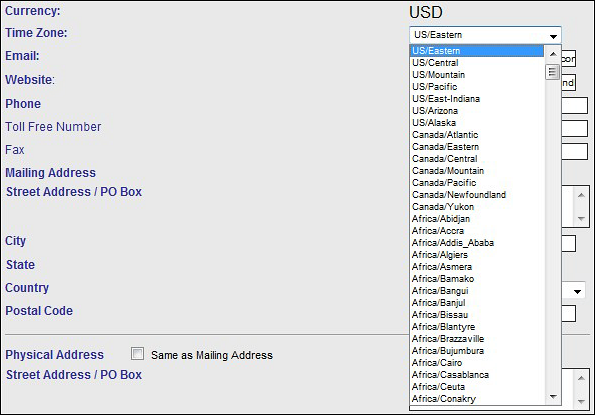
- Scroll through the list and select the time zone you want.
- Click Save Changes.
Set Your Time Zone in Inntopia RMS
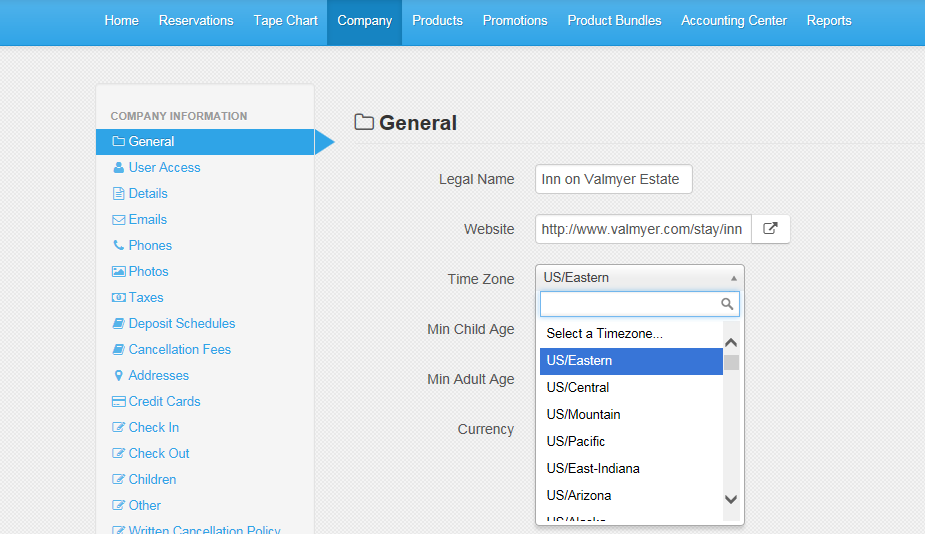
- Log into your Inntopia RMS account and click the Company tab. The Company page opens with the General tab selected.
- From the Time Zone drop-down list, select the time zone you want.
- Click Save.
